Everything a service company does every day
From the first request to the paid invoice, for companies that work at their customers’ sites. No separate programmes, no double work.
Try it free until 1 March 2027 with Essential. You can sign up until 1 March 2027.
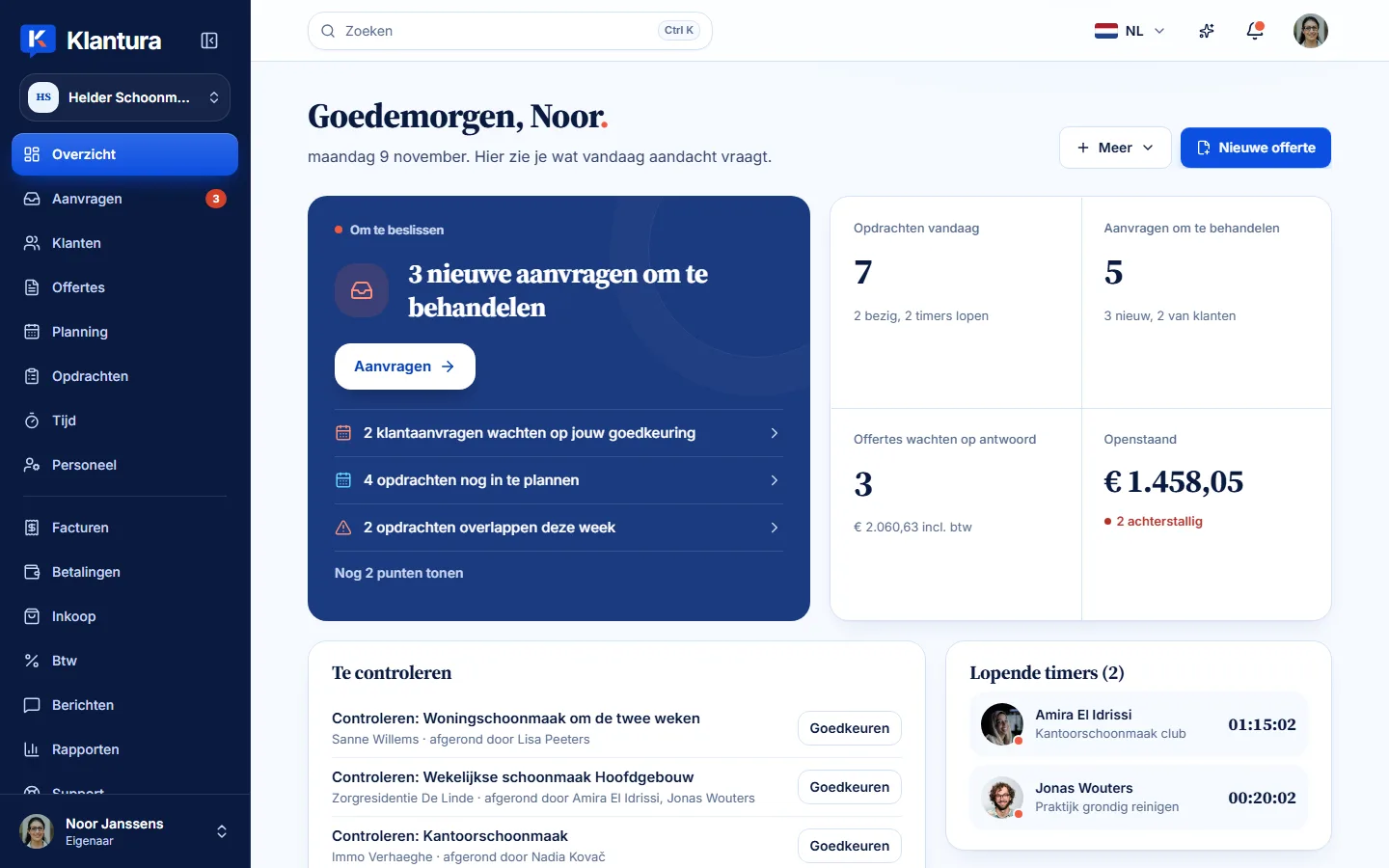
Requests and quotes
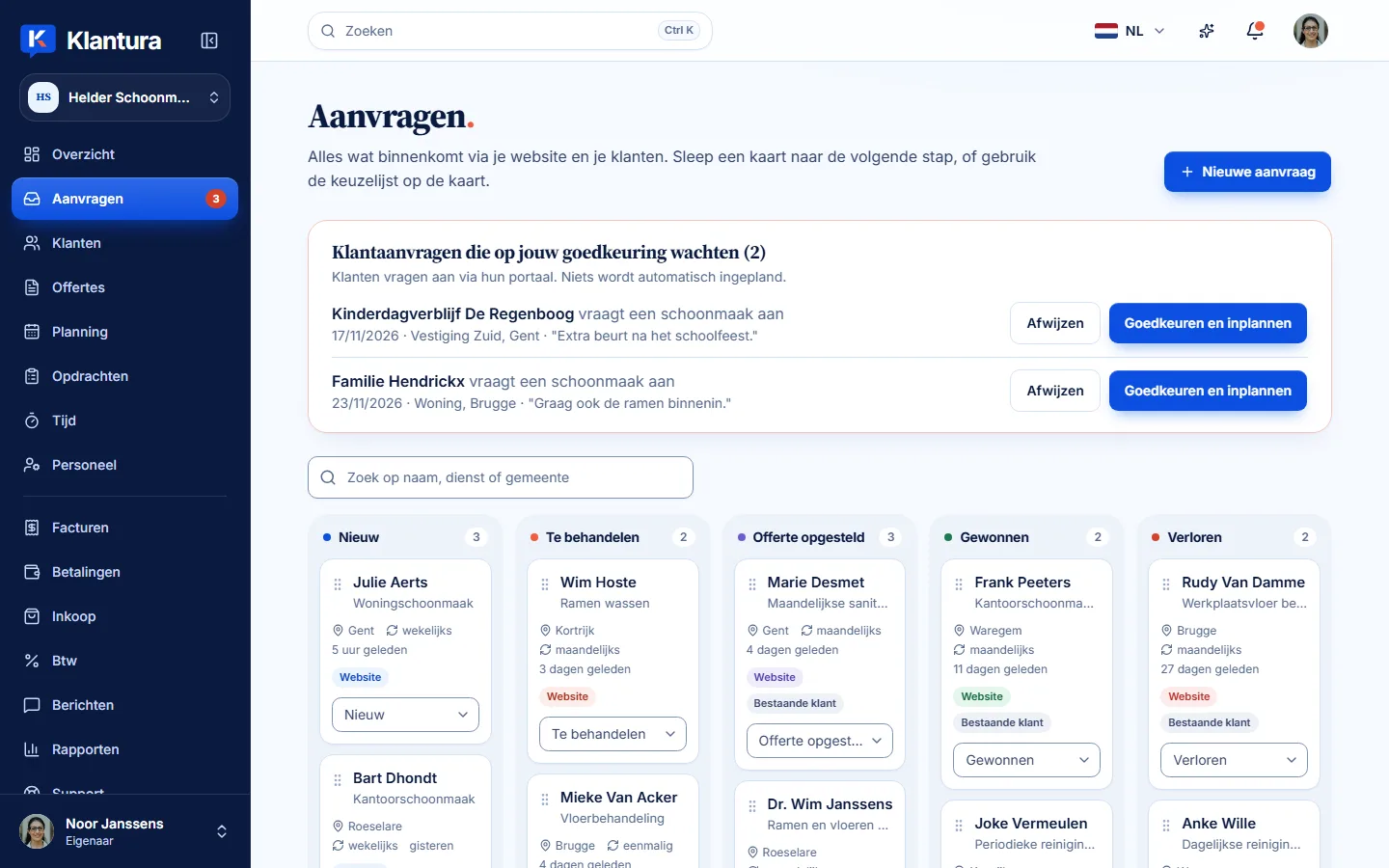
Log every request in one inbox and follow it up in columns, from new to won or lost. Turn it into a customer and a quote with one click, or start from scratch.
- Business or private customer, with address, floor area and preferred frequency
- Services at a fixed price, per hour, per m² or per visit
- Versions of a quote are kept, and approval records the name and time
- An accepted quote becomes a job or an invoice without retyping
- The quote goes out by email with the PDF attached; your customer approves or declines it on a page with no login

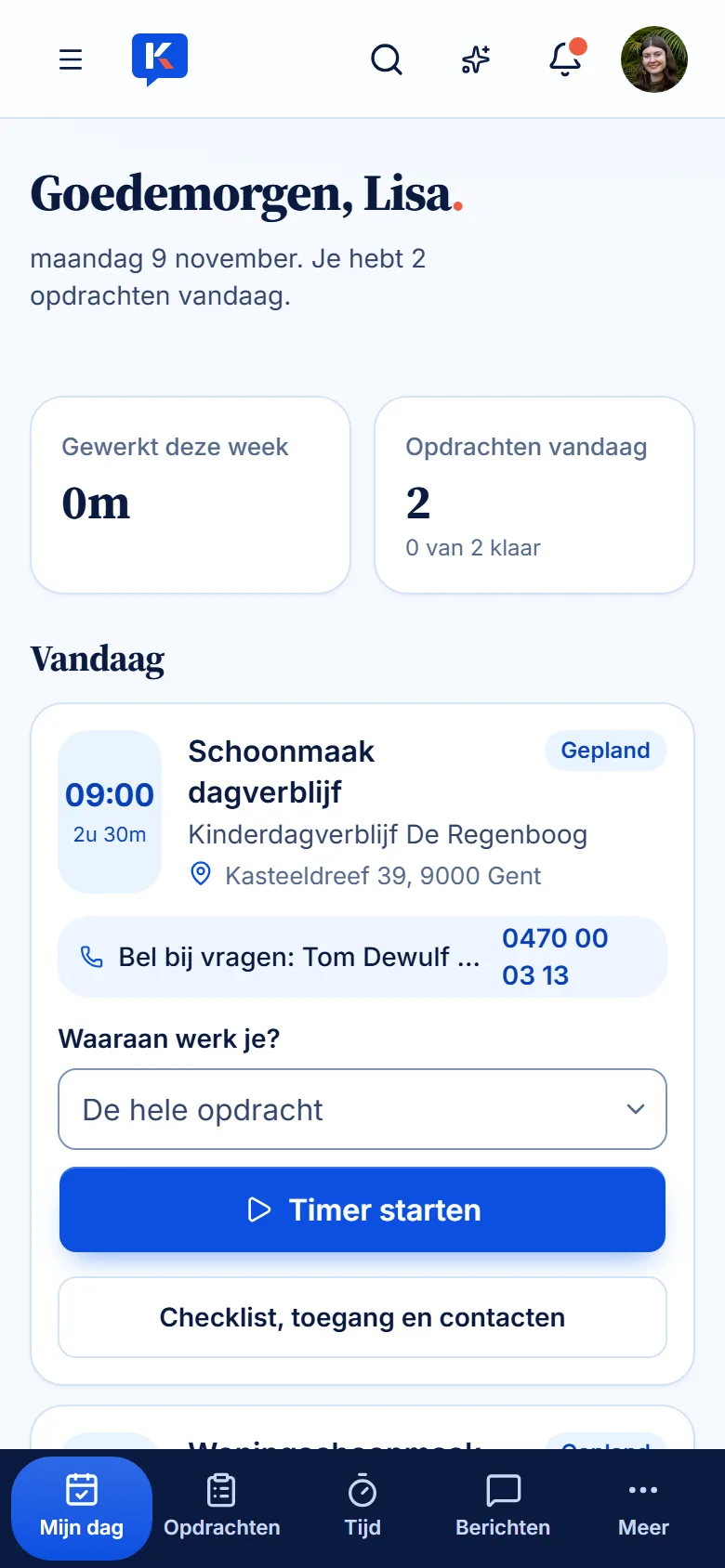
Scheduling and execution
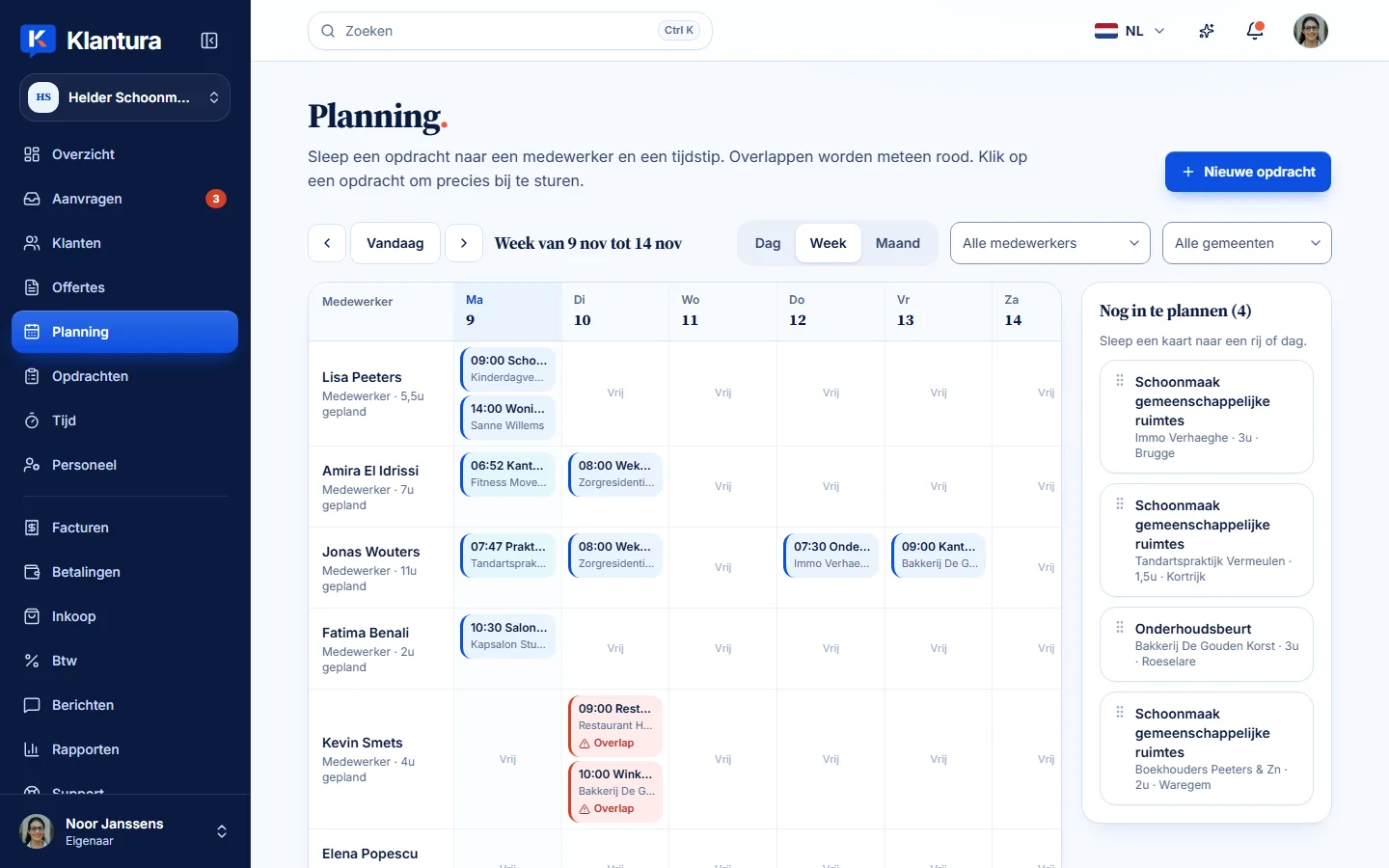
You see overlap, travel time and fixed days off straight away. Each job has everything needed to do the work in one place: address, checklist, contact person and a timer.
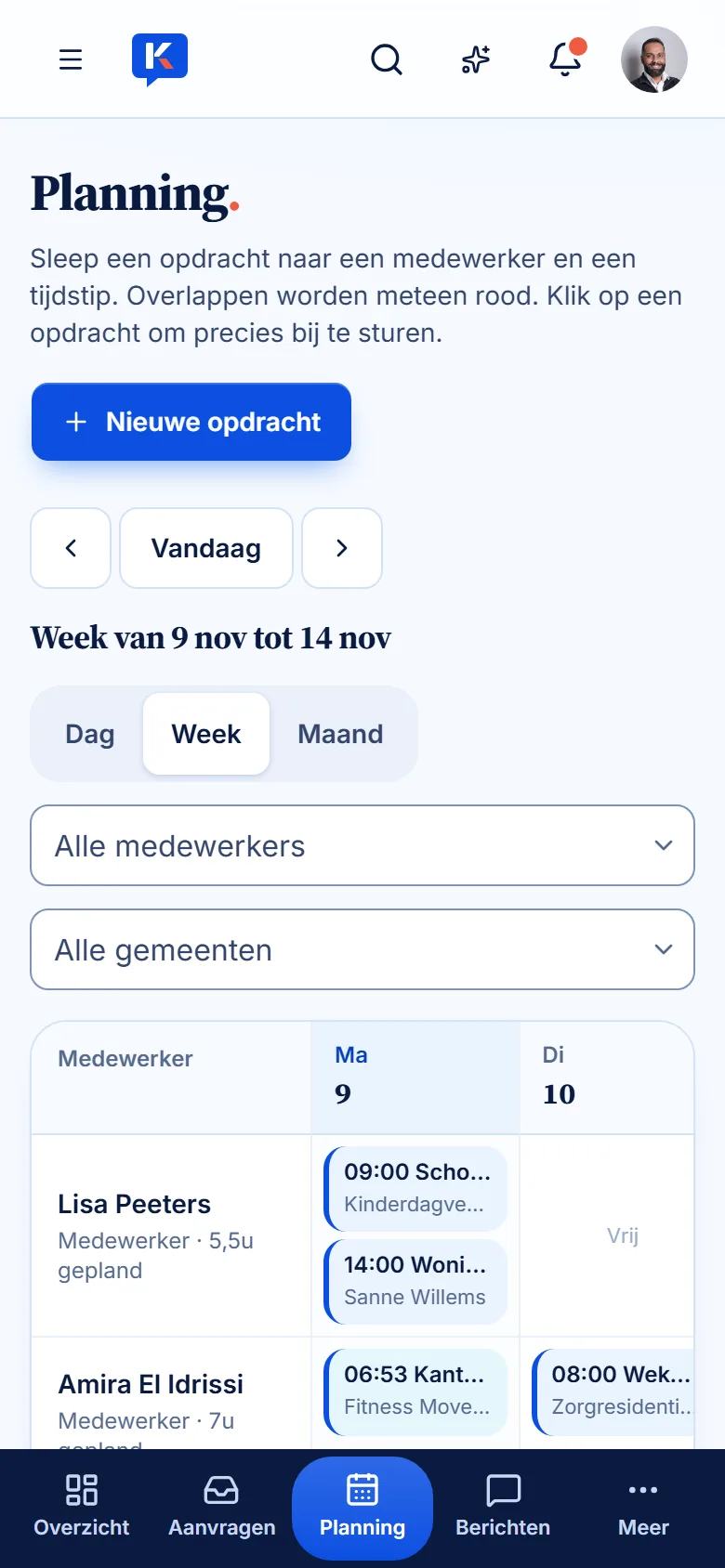
- Day, week and month views with filters per employee and town
- A recurring agreement creates the visits for the next eight weeks
- Checklist, note, photos with your camera (before, after or damage; from Professional) and a deviation if something did not work out
- Photos appear first as a small preview; without a connection the photo waits safely on your device and is sent as soon as the app has a connection again (the app must be open; on an iPhone a closed app cannot send in the background)
- One timer per person, with a pause, on the whole job or on one task of the checklist, and a logged correction afterwards

Who to call and how to get in
An employee standing in front of a closed door costs time and money. That is why the right information belongs with every job, visible only to those who need it.
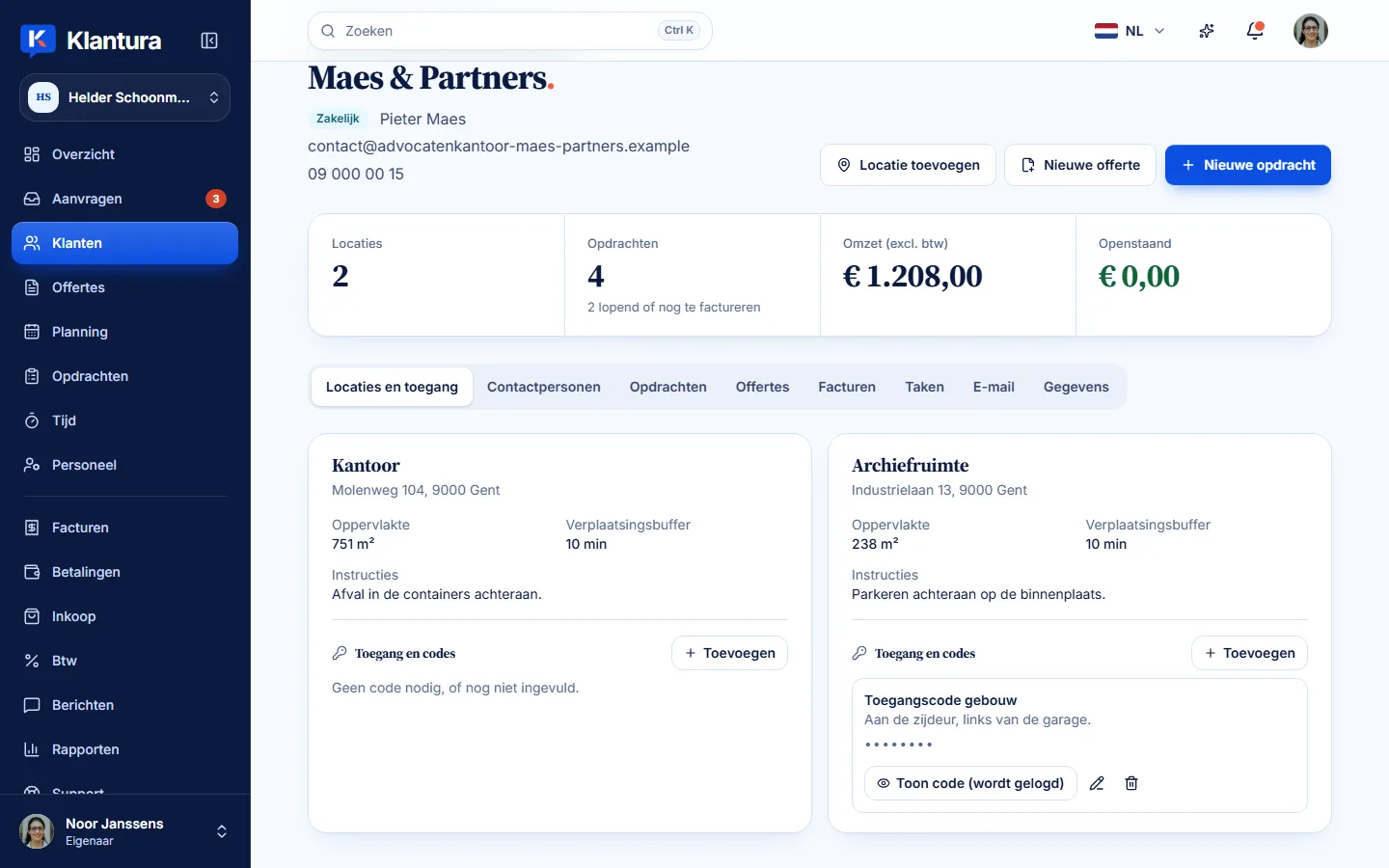
- Contact persons per site and per client company, with one tap to call
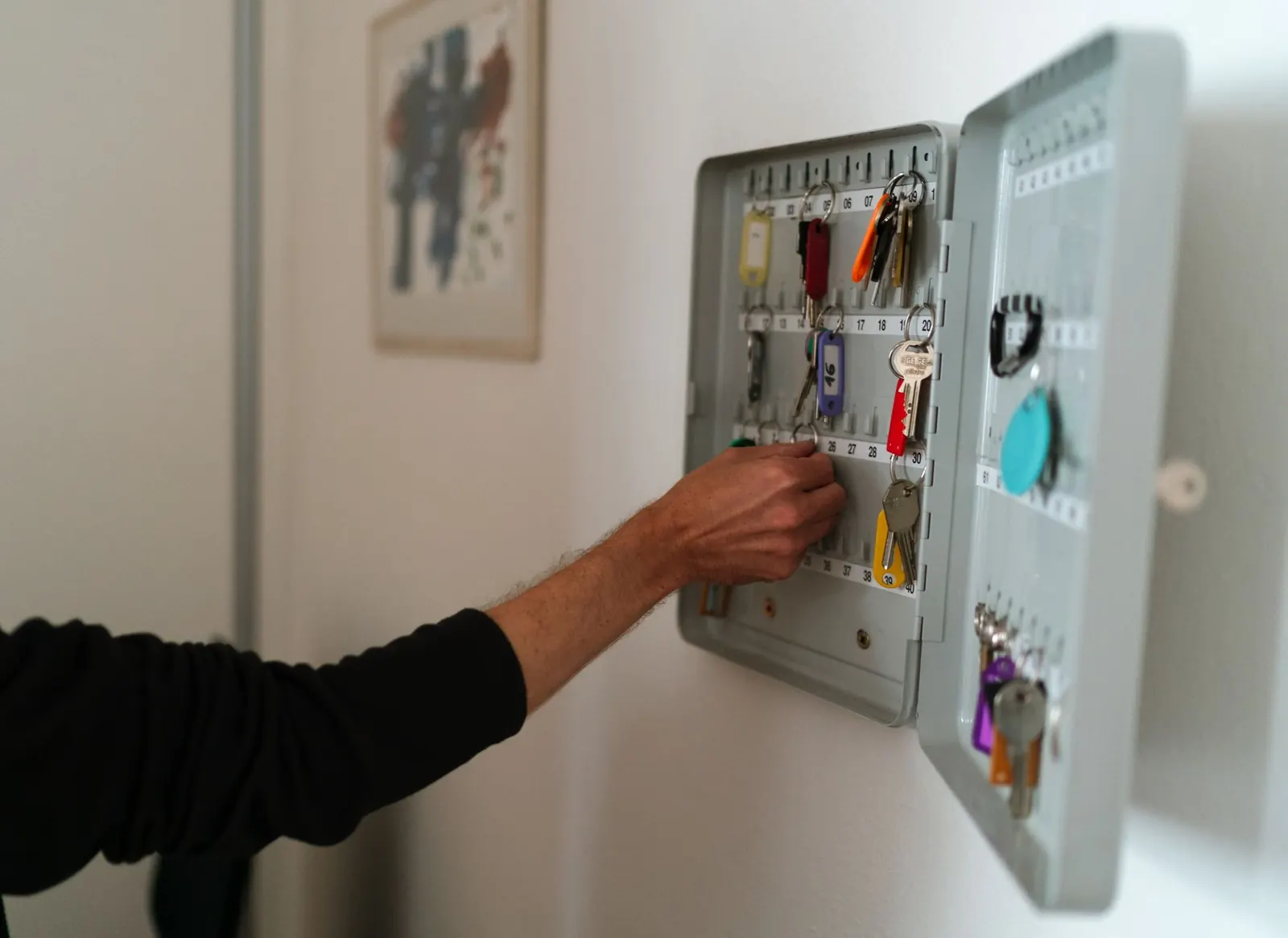
- Gate codes, key boxes and alarms: hidden, visible for 30 seconds and logged
- The code itself never appears in the log or in a message
- A separate contact person for each job
- A customer with their own login changes the contact persons and access details of their own sites themselves; they can replace a code, but never see it again
Staff and subcontractors
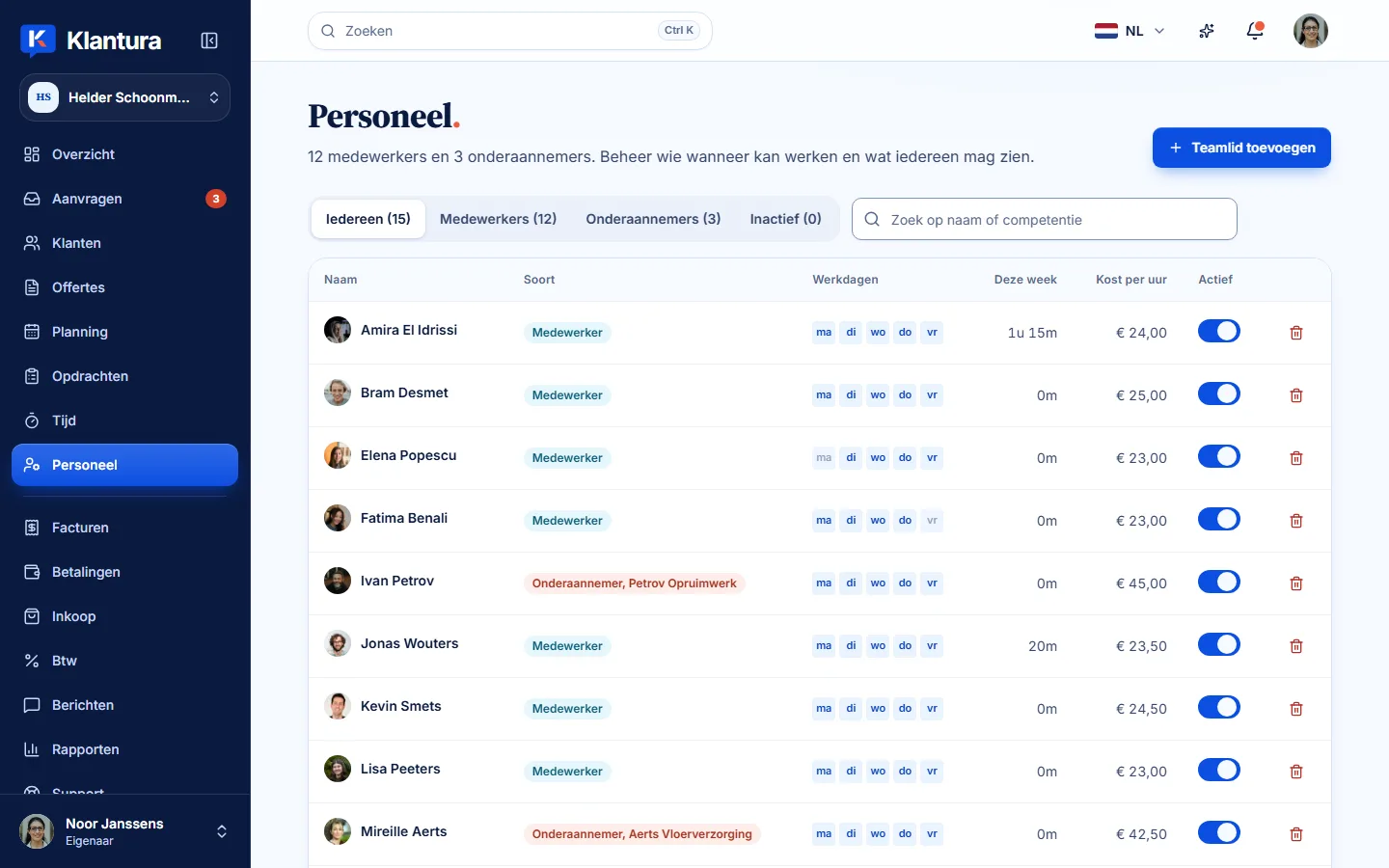
Put your team and your subcontractors in one list, with working days and availability. Invite employees and subcontractors with their own login: they only see their own jobs. Beforehand you can view the app as a preview of each role.
- Working days and active status per person
- Six roles with fixed permissions: in the app, each role only sees the screens and data that belong to it
- Invite by email: employees, subcontractors, customers, planners and accountants log in with their own address and password
- An employee or subcontractor only sees their own jobs, without prices; the database blocks the rest
- An accountant gets only the money side from the database; a planner without financial access gets no invoices, quotes, prices, cost rates or bank details
- Cost per hour is only visible to those with financial access

Invoices and payments
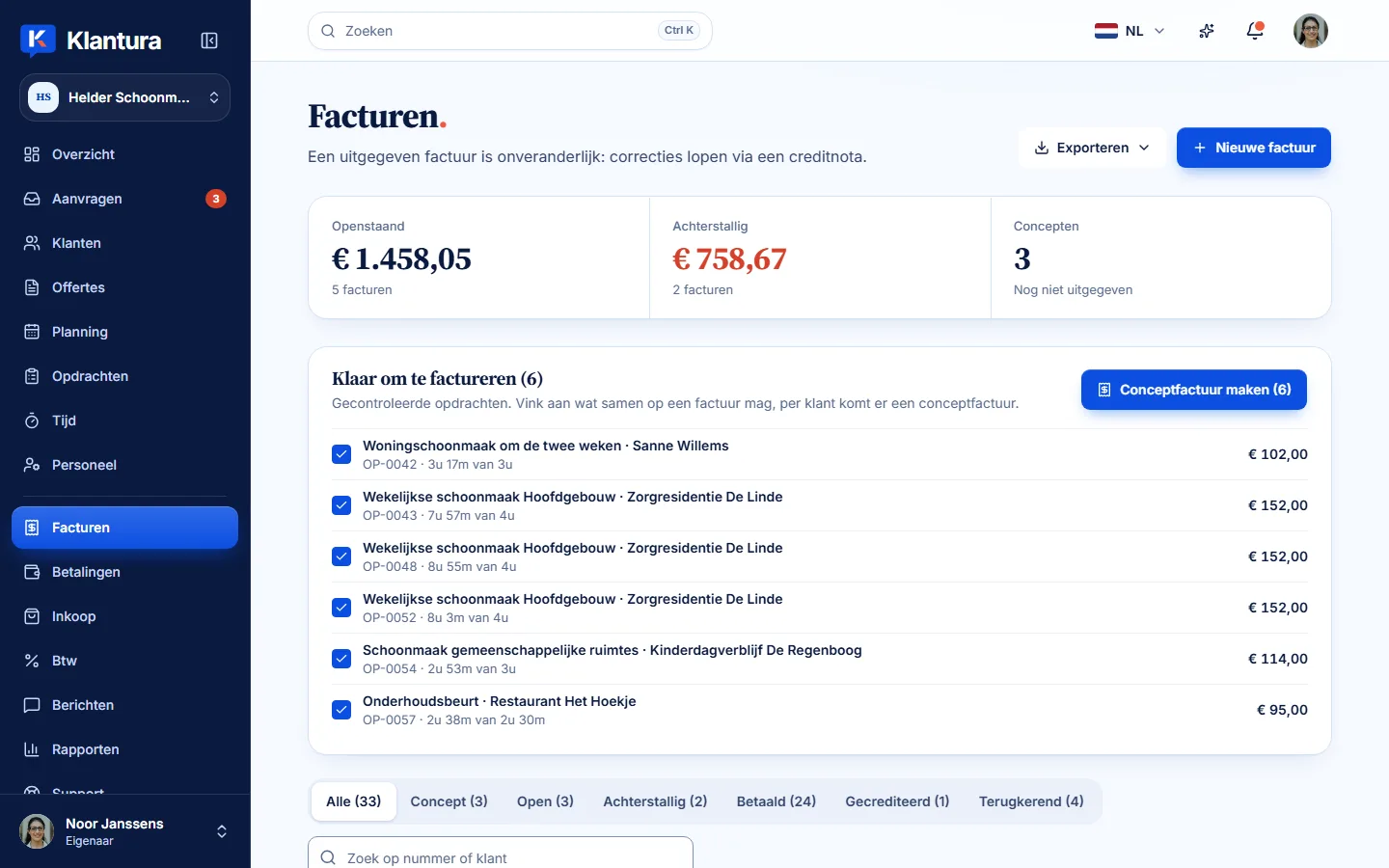
An invoice comes from a checked job or an accepted quote. Once issued, nobody can quietly change it: corrections go through a credit note.
- Invoices, down payment and instalment invoices, credit notes and recurring invoices
- Payment reference and QR code on the invoice (OGM in Belgium, RF reference in the Netherlands, EPC QR for both)
- Record payments, part payments and overdue amounts by age
- A step-by-step plan for payment reminders, by email: with one button, or every morning on its own if you switch on automatic reminders
- The invoice goes out by email with the PDF attached and a button to a page with no login that shows the payment details and the QR code
- You create a recurring invoice with one button; if you choose “issue and send straight away”, it goes to the customer by email at once, and a customer without a valid email address ends up in the list “Still to send”
- You can send quotes, invoices and reminders from your own email address, through the SMTP server of your own email provider; if sending fails, you get a message and nothing goes out via Klantura instead
Stock and materials
A company that uses materials keeps track of its stock: cleaning products, parts or plants. What you use on a job and pass on to the customer goes on the invoice for that job automatically.
- Items with unit, minimum, order quantity, cost price, selling price and supplier
- Receive, use on a job, write off and count: the average cost price follows
- Use that you pass on to the customer appears under the job’s line on the draft invoice
- The order list shows what is at or below the minimum, per supplier, and comes along as text or CSV for your order
- Visible to the owner and to a planner with financial access; your employee does not book out use yet, your office does that

Customer portal and messages
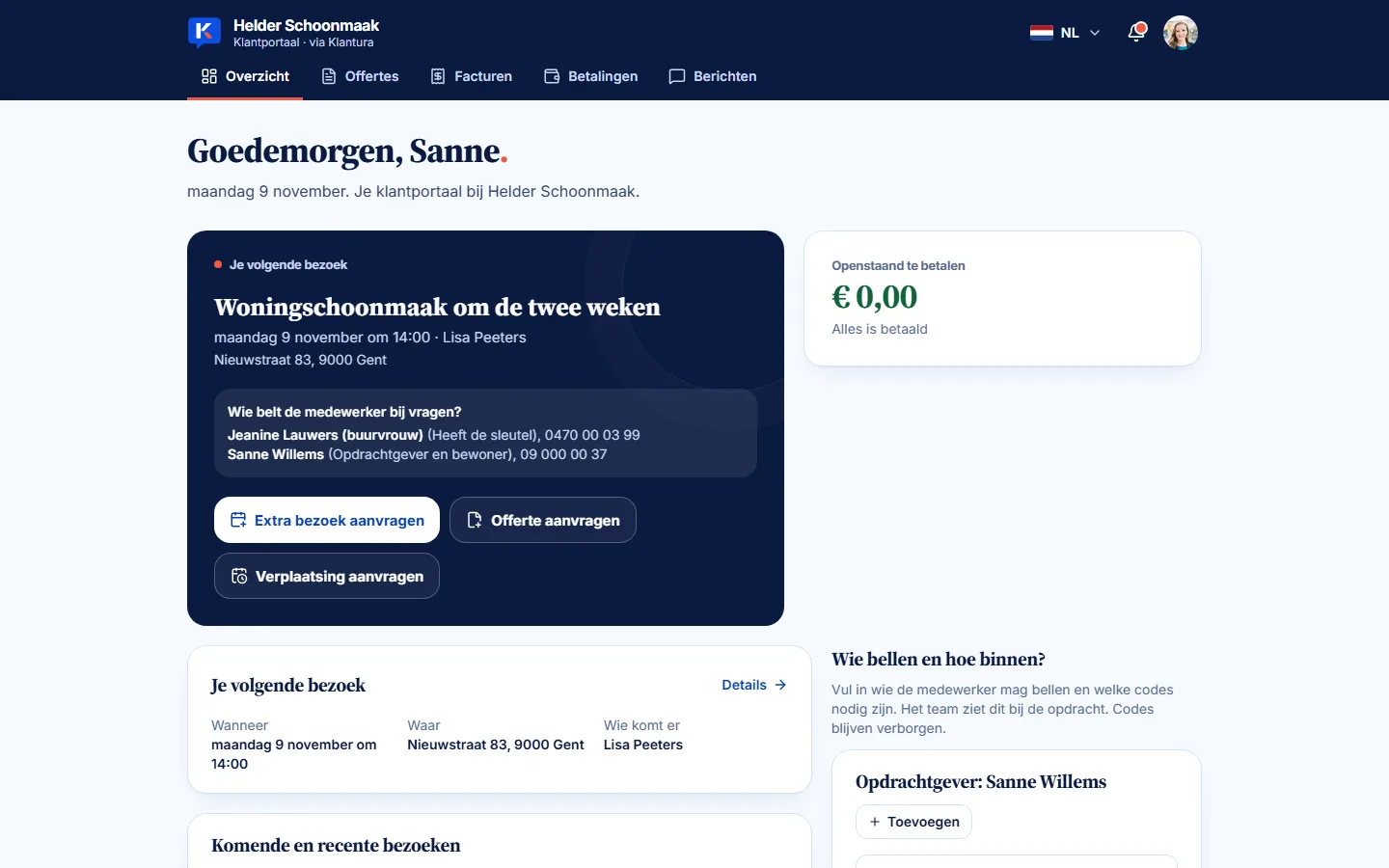
The customer portal shows a customer’s visits, quotes to approve, invoices and a place to make a request. You invite your customer with their own login; you yourself view it as the customer to see what it looks like.
- Request an extra visit, a reschedule or a new quote
- You decide: nothing is scheduled automatically
- Messages per job or general (from Professional), kept in the customer file
- Digital approval of a quote, with name and time in the log

Reports and export
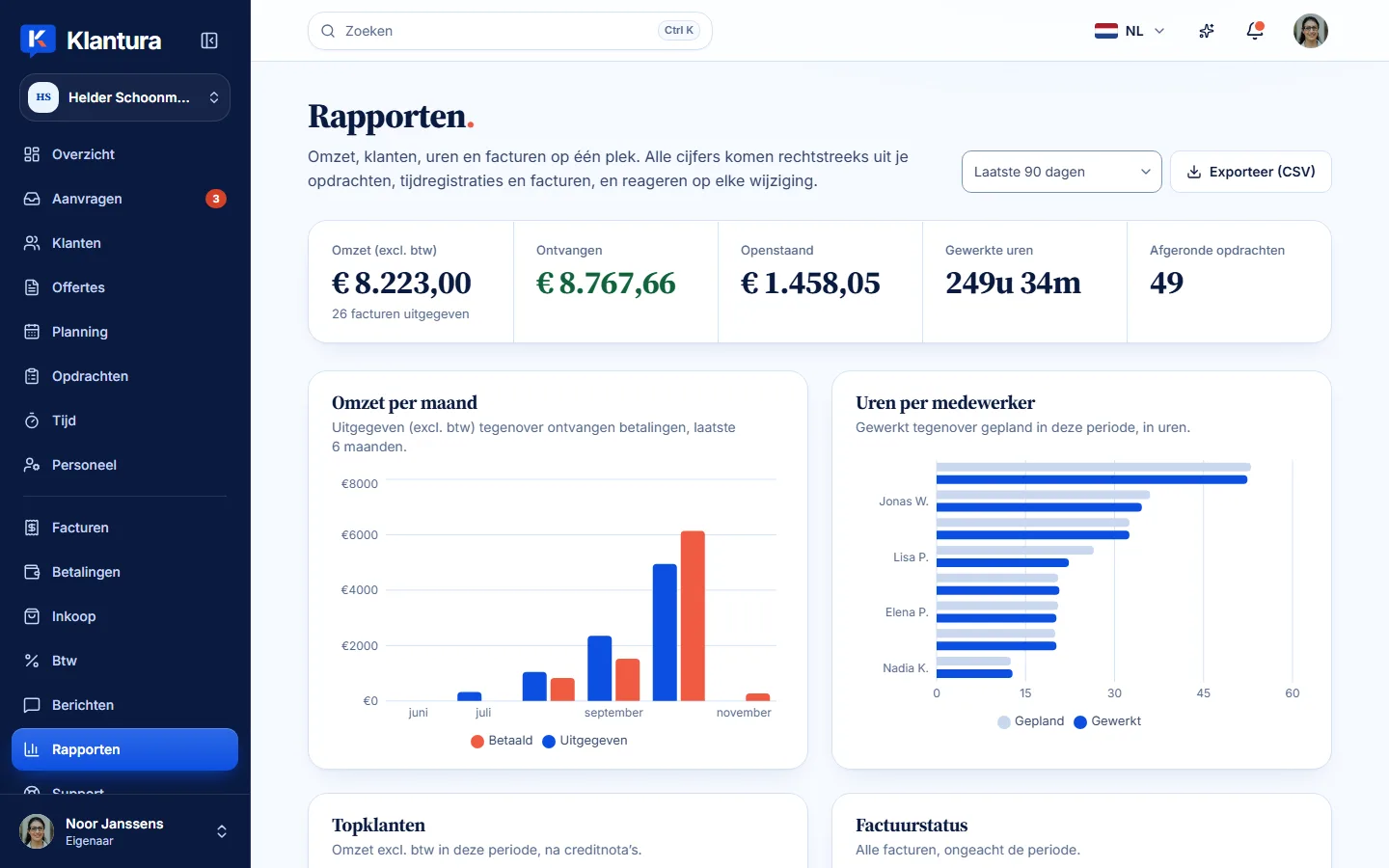
Revenue, best customers, hours per employee and the status of your invoices, without a spreadsheet. Your accountant gets an export file.
- Revenue per month, top customers, hours per employee and invoice status
- Profit estimate only with reliable hours and costs
- Export file and CSV for your accountant
- Check a customer’s VAT number in the European VIES register
- Connect Claude or ChatGPT: ask questions about your invoices, customers and revenue; with write access the assistant also creates a customer or a draft invoice and records a payment. It can never delete anything

Importing from your files
You do not start from zero. You import your data from a file and you see a preview first: nothing changes until you confirm.
- Customers, requests, quotes, schedule (jobs), hours, invoices, payments, staff, stock and purchase invoices
- CSV, Excel (.xlsx), Word (.docx) and PDF with text; you save an old .xls or .doc as .xlsx or .docx first, and Klantura cannot read a scanned PDF without text
- You match the columns yourself and check a preview, with the rows that are new, duplicate or unreadable
- The file is read in your browser and is not uploaded anywhere
- Duplicate rows are skipped, so importing the same file twice does no harm
- Via the Import button on the list pages, or under Settings in Integrations

Secure and usable anywhere
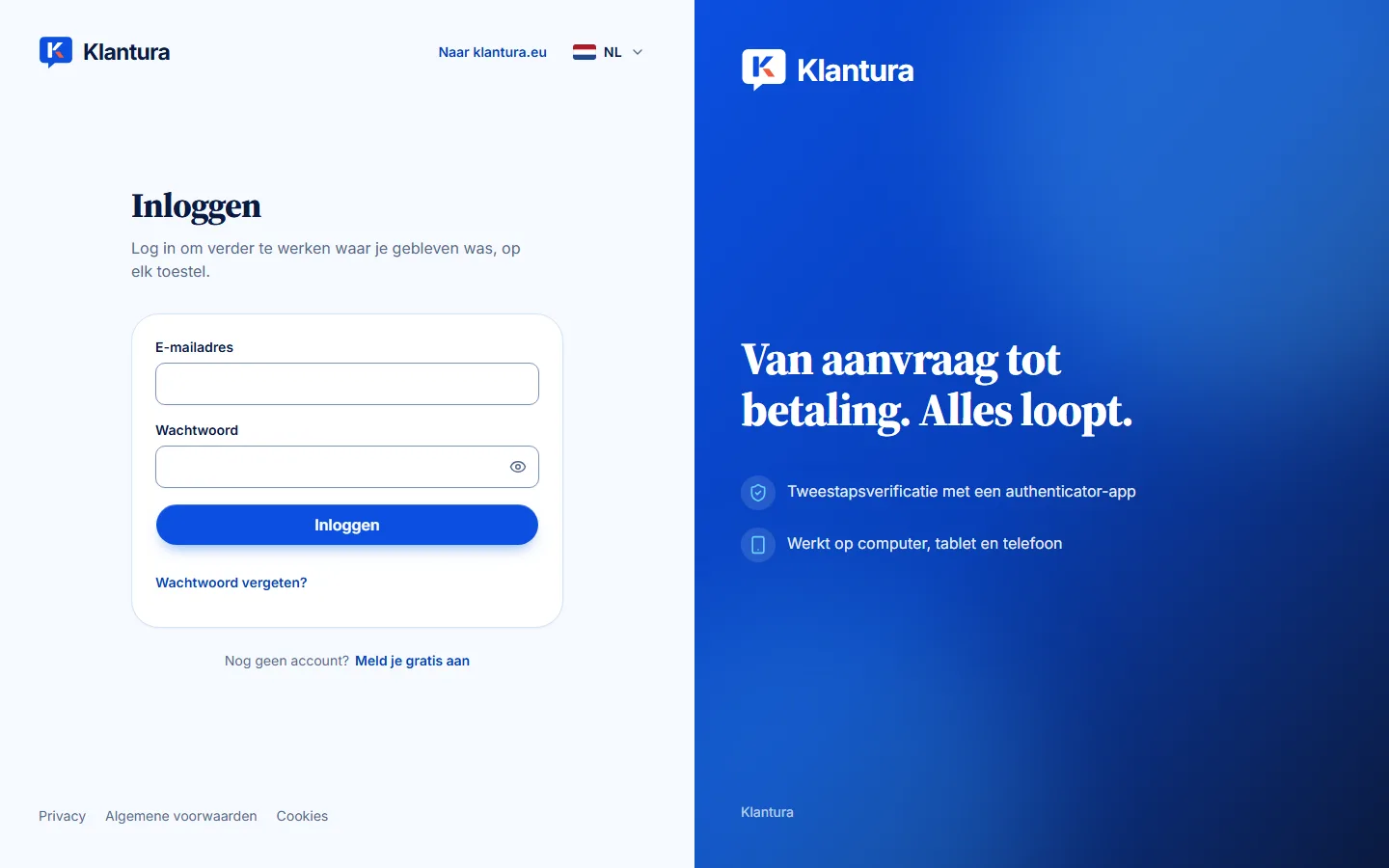
You confirm your email address once with a link and then log in with your email address and password. Your data is on the server and can be found on every device.
- Fixed permissions per role, enforced by the database
- Photos on a job are stored privately, without camera data such as the location
- For each photo you choose whether your customer sees it; the accountant never sees photos
- Photo space: 20 GB on Professional and 60 GB on Business, with a warning from 80 %
- Optional two-step verification with an authenticator app, enforced by the database
- Installable web app for phone and tablet, no app store needed
- Working without internet: the app opens and you simply carry on; as soon as you have a connection again, everything is saved and merged with what others did in the meantime. Issuing and emailing an invoice does need a connection
- A forgotten password is reset with an email to your own address
What is not there yet
This is planned but does not really work yet. We would rather say so up front. What you need today, you will find above.
- Planned
Access codes hidden from a planner
A planner without financial access gets no invoices, quotes, prices, cost rates or bank details from the server: the database blocks them. A planner does get the access codes of your sites, because a planner helps set them up and briefs the crew. An employee or subcontractor gets a code only through a logged action. Keeping the codes from a planner as well is not something you can set yet.
- Planned
Requests from your own website
A request form on your website that lands directly in the Requests inbox of your account. The connection exists and already runs for a first customer; we set it up for you, and you cannot yet switch it on yourself in the app.
- Planned
Photos in quotes, invoices and e-mails, and sending with a closed app
You see photos in the app, and your customer sees in their portal the photos you tick. They do not appear in quotes, invoices or e-mails. A photo without a connection waits on your device and is sent while the app is open; a closed web app cannot send anything, and on an iPhone not at all in the background.
- Planned
Booking out materials by your employee on the phone
You keep track of your stock and book out the use on the job, so that it can go on the invoice. For now your office does that: the owner or a planner with financial access. Your employee does not yet book out use themselves in the field.
- Planned
Multiple companies in one account
For real accounts there is currently one company per account. Adding extra companies and switching between them is to follow.
- Planned
Sending and receiving via Peppol
Electronic invoicing through an accredited access point. We already create a sample file per invoice (not validated yet); actually sending it follows as soon as the connection is active.
- Planned
Paying online with a payment link
Customers pay directly from the invoice. We are choosing a payment provider for this.
- Planned
Accounting integrations
Send invoices directly to accounting packages such as Yuki, Exact or Octopus. Creating an export file already works.
- Planned
A checklist of your own per customer or service
Every new job gets the same checklist of five tasks, such as floors, sanitary and kitchen. You cannot change that list yet, or set it differently per customer or service.
- Planned
Other rhythms for recurring visits
A recurring job comes back every week or every two weeks, for the next eight weeks. You cannot choose monthly or quarterly there yet, and after eight weeks you create a new series yourself. Recurring invoices do offer weekly, monthly, quarterly and yearly; you create them with a button, they do not appear on their own overnight.
Curious how this works in practice?
Watch the short tour or sign up for free to try it yourself.